
About the Tickets Tab/Page (Legacy)
Table of Contents
This document provides an overview of the information you’ll find in the Tickets tab and the actions you’ll be able to take for one or more tickets in the table that displays on the page. (This is also known as the Tickets module.)
IMPORTANT: This document refers to the legacy version of this page/feature. See About the Tickets Tab/Page for the updated version.
Click the Tickets tab in the Syncro header to display the Tickets page and table.
The Tickets page contains a search feature (1), an action button bar (2), and the Tickets table (3):

The upper right corner of the table may display the total number of unresolved tickets (in this example, “2”). As tickets are resolved, this changes to N of T tickets (where T is the total number of tickets and N is the total number of tickets displayed in the table).
There are several ways you can sort and filter the tickets in the table. The filter options display under the action button bar (2). You can create Ticket Views using the button below search bar (1).
Search for a Ticket
If you have a long list of tickets, type a few characters (max 50) of the Customer or Subject into the search bar (1). Then click Search. Only matching tickets now display in the table.
Click any hyperlinked ticket number to view that ticket's Details Page.
To redisplay the full list of tickets, select the characters in the search box, delete them, then click Search.
The search box remembers your previous entries the next time you search. Hover the mouse on a specific entry and click the x that appears to clear it from the list.
You may also want to Search for Tickets Using Smart Search instead.
Customize the Tickets Table
By default, the table displays one row for each ticket's number, the Customer the ticket is for, and the ticket's Subject. It also lists the assigned Tech and Last Updated/Due Date information. The Issue column shows the ticket's category.
Tip: Click the gear icon (  ) next to the total number of tickets to customize which columns appear in the Tickets table and use the triple line icon to drag them into your desired order:
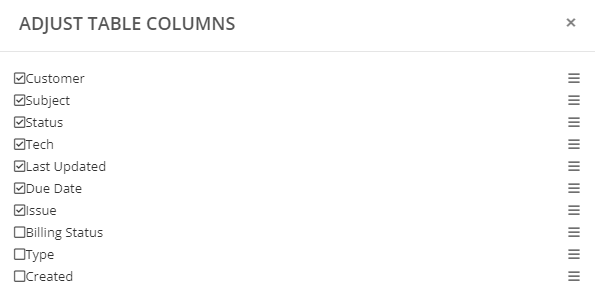
Click Save for your changes to take effect.
Sort and Preview Ticket Information
You can sort on any of the columns in the Tickets table. A triangle icon indicates which column you’re currently sorting by, and whether the sort is ascending or descending. Click again to toggle between ascending and descending order.
Click any hyperlinked Ticket number to view that ticket's Details Page.
To preview ticket information, hover over the Ticket icon until it changes into a magnifier. Click More Info to preview some information about the ticket. A preview window displays:
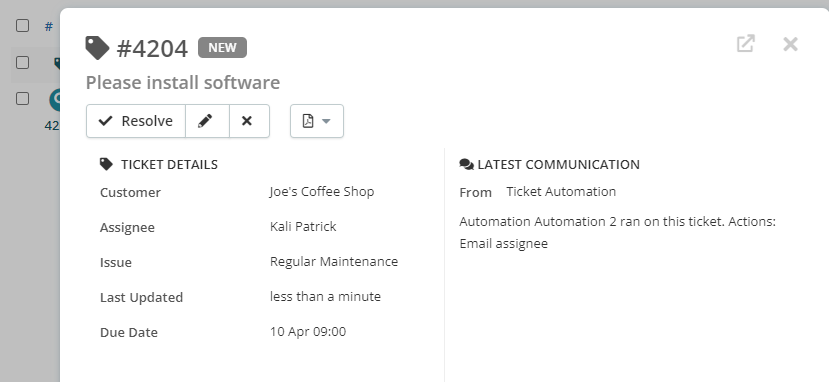
Open this ticket's Details Page using the arrow in the upper right, or click the x to close the preview.
Tip: You can also preview information about the Customer from the Tickets table.
Filter Tickets
The action button bar (2) includes a filter row in the upper right corner:

By default, tickets displayed in the table are filtered on “Status is not Resolved”:
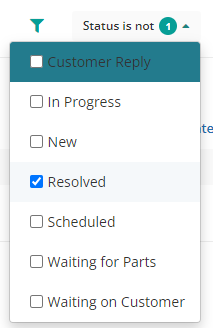
Check any of the boxes in this filter (or the next “Status is” filter) to display tickets based on their Status.
“Issue is” filters on one or more issues that you define in the Ticket Issue Types section under Admin > Tickets - Preferences.
“Type” relates to any custom types/fields you previously defined for Tickets. See Create Custom Fields for more information.
“Tech” and “Tag” filters display your user list and any tags you previously defined for Tickets.
Group Tickets
You can also use the “Group By” filter to display tickets in groups based on primary and secondary information, such as Ticket Status and Ticket Issue:

Note: At the moment, Syncro does not support grouping tickets where the selection has more than 100 (i.e., more than one page). We expect this to change but in the meantime, please limit the scope of your grouping to fewer tickets using additional filters:

After you've selected all your filters, click Apply Filters. The Tickets table reflects only the tickets that match your filter selections.
Modify a Ticket Inline
You can change any ticket information that appears as a button in the Tickets table directly.
Often, clicking the button displays a dropdown menu that allows you to change the information. For example, for any ticket with a Status of “New,” click to display a dropdown to change the ticket to “In Progress.”
In the default arrangement of the Tickets table, you can also inline modify Tech and Issue information.
The most helpful inline button might be the one in the last column; you can quickly mark a Ticket as Resolved:
Select and Modify Multiple Tickets
Click the checkbox to the left of one or more tickets to activate the “Bulk Actions” button menu. Click the header row's checkbox to select/deselect all tickets.

Use the Bulk Actions button menu to take any of the following actions on all selected tickets:
- Edit: edit the Status, Tech, Tags for the selected tickets. You can also add Public (emailed) Comments and Private Comments to the tickets.
- Delete: permanently remove the selected tickets from Syncro (so be sure)!
Tips:
- Click +New Ticket to create a new ticket.
- Use the View button menu to quickly navigate to other Ticket-related pages.