
About the Syncro Header & Primary Navigation Bar
Table of Contents
You'll use the Syncro header and primary navigation bar to access and move among Syncro's various features.
This document describes four main areas to help you get your tasks completed quickly:

- Search
- Smart Ticket Search
- Icons (including the global “New” menu)
- Your Syncro User Profile menu
- The Primary Navigation bar
Tips:
- For more screen real estate, you can click the Collapse icon at the far right to hide items 1-4 (i.e., only display the Primary Navigation bar):
- You can select and reorder the tabs that display in the Primary Navigation bar to meet your needs. See the Tab Customization option under the Syncro User Profile menu for more information.
Search
The first thing you'll see in the upper left is the “Search” search bar (1).
After you've typed a minimum of three (3) characters, Syncro displays results from all modules, including Organizations (Customers) and End Users (Contacts), Assets, Invoices and Estimates, and Tickets:

- In the upper-right corner of Customers results, use one of the four icons to display all of this Customer's estimates, invoices, tickets, or assets. (If your browser settings allow, these open in a new browser tab.)
- Click on any result to navigate to that item.
- If you're searching for Tickets, you may also want to explore the search on the Tickets Tab/Page or the Smart Ticket Search.
If you press enter, Syncro displays the Advanced Search page:
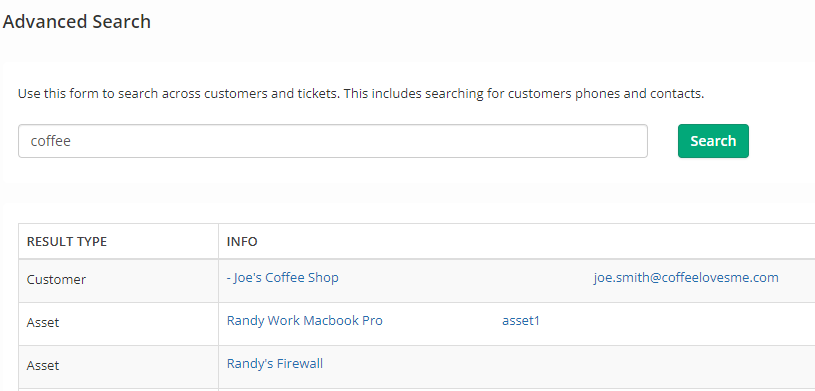
Click any hyperlinked text to navigate to that information, or revise your terms and click Search.
About Search Results
The Search field uses two different methods to retrieve data; depending on what you're looking for, results are either instant or updated daily.
- Most data is queried in real-time. Changes to Customers, Tickets, and Products, are searchable immediately.
- Asset data (including the Last User field) is re-indexed once per day at 01:00 UTC. While this helps ensure system performance, updates to Asset fields may not appear in results until this process completes. If you need to find an Asset that was updated recently and isn't appearing in the global search yet, navigate directly to the Assets and RMM tab for the most current data.
Icons (Including the Global “New” Menu)
In the upper right corner of the Syncro header you'll find four (or five) icons. The first (the +) is Syncro's global “New” menu:

As its name suggests, this menu is always available to help you create the most common things in Syncro.
The other icons are:
- Notifications (the bell icon): opens the Notifications sidebar on the right side of Syncro. When there are notifications to show, they'll display here. Click Dismiss All to clear the notifications, or the X to close the sidebar.
- Active Timers (the stopwatch icon): this displays only if you have a timer currently running for a ticket. See Use a Timer to Capture Billable Time for a Ticket for more information.
- Chat (the chat bubble icon): navigates you to the Chat tab/module within Syncro.
- Resource Center (the question mark icon): opens the Resource Center menu where you can get help and support if you need it. (This does not open if you're on the Training tab.)
Syncro User Profile Menu
On the far right you'll see your Syncro User Profile menu; the options in this menu are described in the table:

|
Option | Description |
| Appointments | Navigates you to a list of your Upcoming Appointments (next 30 days). | |
| Dark Mode | When clicked, changes your screens to dark mode and provides a Light Mode option to switch back. | |
| Documentation Center | Navigates you to the Documentation tab and your (internal) Documentation Center. | |
| Enable Fullscreen | When clicked, Syncro removes the wide margins on the left and right of your screen and provides a Disable Full Screen option to switch back. | |
| My Calendars | Navigates you to a page that allows you to integrate Syncro with calendaring systems like Google and Outlook365. | |
| New Reminder | Pops open a window so you can quickly set a new reminder (with date/time and a note) for a Tech you select. Click All Reminders to navigate to the Reminders page. | |
| OpenID Authorizations | Displays a table containing open ID authorized accounts, listing the Provider, Identifier, and Date Added for each. This feature is largely unused. | |
| Profile/Password | Displays a page listing your name, Syncro username, Personal Appointment Booking URL. You can change your password and enable Multi-Factor Authentication (MFA) here too. | |
| Settings |
Navigates you to the General Settings page where you can specify your:
This a shortcut to Admin > Syncro Administration - General Preferences. See also Customize General Preferences. |
|
| Tabs Customization |
This opens the Tabs Settings page, where you can:
Notes:
|
|
| Time Clock | Pops open a window so you can quickly Clock In/Clock Out with a Note. You can Clock Out specifically for a lunch break, see a running list of Time Clock Entries, or click Time Clock Admin to navigate to the Time Logs page. | |
| Sign Out | Logs you out of Syncro. |